Guide
Melolo APK Notifications Guide
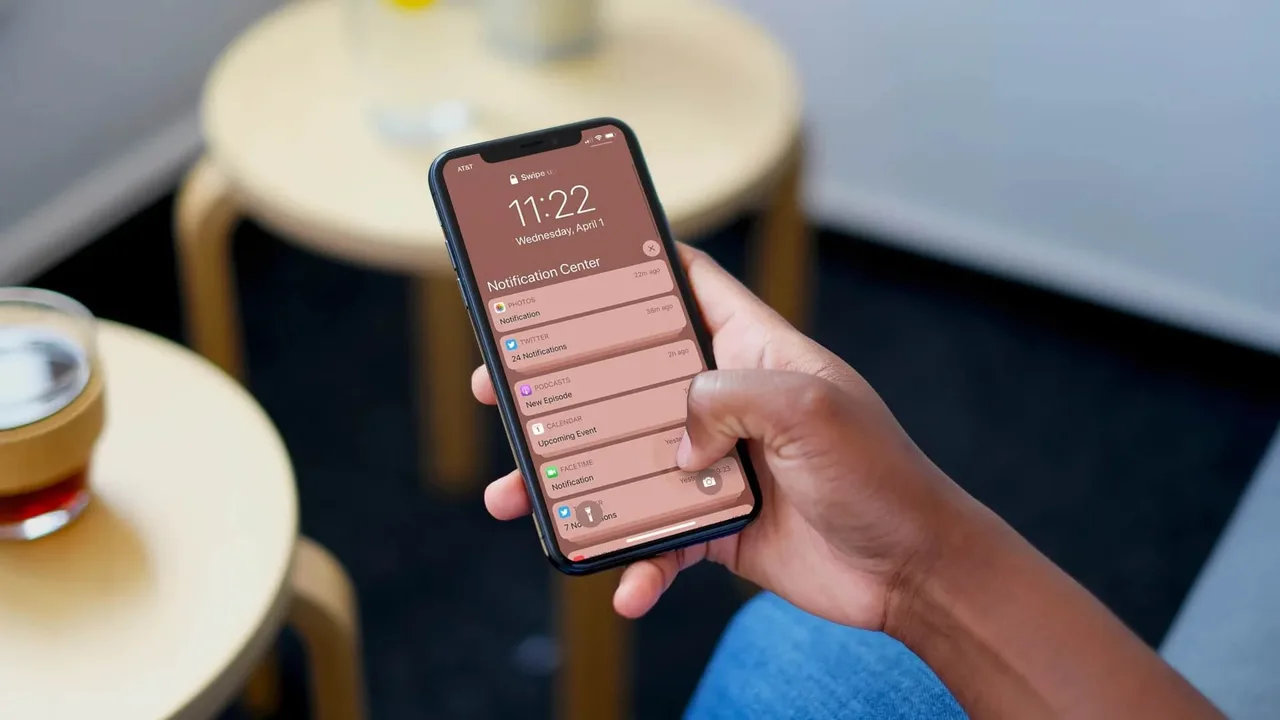
Notifications from a drama app walk a narrow line: the alert that a followed series just dropped new episodes is genuinely useful, while the fifth promotional buzz of the day trains you to ignore or disable everything. Melolo APK alerts are manageable once you know the two control layers involved, the app's own settings and Android's notification system.
This guide sets up alerts that serve your viewing: on for the series you follow, quiet for everything else, and silent during the hours you choose. Everything covered here ties back to the main Melolo APK page, where the download and the key facts live.
The Two Layers Of Notification Control
The app decides what it wants to send; Android decides what it may show. Both layers have switches, and most notification problems come from adjusting one while the other disagrees.
Set intent in the app first, which categories of alerts you want at all, then use Android's per-app and per-channel controls to govern sound, prominence, and timing.
- App settings choose alert types
- Android governs sound and display
- Both layers must agree
- Channel controls refine further
Where Android Keeps The Switches
Long-press any notification, or open Settings, Apps, Melolo, Notifications, to reach channel-level controls, silent delivery, and lock-screen behavior.
Alerts Worth Keeping: Followed Series
New-episode alerts for series you actively follow are the highest-value notifications the app sends: they arrive at the exact moment your intention to watch is strongest.
Follow deliberately. Every followed series is a potential interruption, so the follow list deserves the same pruning discipline as the watchlist.
The Follow Audit
Monthly, unfollow series you finished or abandoned. The alerts you keep will regain the urgency that an over-followed list destroys.
Quiet Hours And Do Not Disturb
Android's Do Not Disturb schedules are the civilized solution to 2 a.m. episode drops: alerts arrive silently and wait for morning, without your needing to disable anything permanently.
Focus modes on many phones extend this, allowing entertainment alerts only in leisure profiles. Either way, time-based silence beats the all-or-nothing toggle most users settle for. Melolo APK Updates Guide covers that side of the platform in full.
- Scheduled silence, not disablement
- Alerts wait quietly for morning
- Focus modes suit leisure hours
- Important contacts stay reachable
Fixing Alerts That Never Arrive
Missing alerts usually trace to battery optimization: Android puts the app to sleep, and its notifications sleep with it. Exempting Melolo from battery optimization, while allowing its notifications, resolves most silent cases.
Also confirm the in-app alert toggles and the follow state of the specific series; a series never followed has nothing to announce.
- Battery optimization is the top culprit
- Exempt the app for reliable alerts
- Check in-app toggles too
- Unfollowed series send nothing
Reducing Promotional Noise Without Losing Alerts
Where the app separates alert categories, keep episode and account alerts while muting recommendations and promotions. Where it does not, Android channels often still separate them, because each notification type may register as its own channel.
The goal is a phone that buzzes for your stories and stays silent for the storefront.
Channel By Channel
Open the Android notification settings for the app and review each channel's name. Promotional channels can go silent while episode channels keep sound and banners.
Frequently Asked Questions
Why Do Melolo Notifications Arrive Late?
Battery optimization is the usual cause. Exempting the app from optimization lets its alerts arrive on time.
Can I Get Alerts Only For Shows I Follow?
That is the intended setup: follow series deliberately, keep episode alerts on, and mute recommendation or promotional categories.
How Do I Stop Night-Time Alerts?
Use Android's Do Not Disturb schedule. Alerts will arrive silently overnight instead of waking you, without disabling them.
I Disabled Notifications And Want Them Back. Where?
Re-enable them in Android Settings under Apps, Melolo, Notifications, then confirm the in-app alert toggles are also on.
Conclusion
Well-tuned Melolo notifications feel like a friend who knows your taste: a quiet word when your series continues, and silence about everything else. Achieving that is a two-layer job, intent set inside the app and discipline applied through Android's channels, schedules, and battery exemptions.
Prune follows monthly, silence the promotional channels, and let Do Not Disturb guard the night, and alerts return to being what they were meant to be: useful.
Related Guides

Guide
Melolo APK Parental Controls Guide | Family Viewing And Content Safety
Set up Melolo APK for family viewing: content maturity awareness, device-level controls on Android, viewing routines for younger audiences, and honest limits of in-app controls.
Open Guide
Guide
Melolo APK Subtitles And Language Guide | Watch Dramas In Your Language
Melolo APK subtitles and language settings explained: turning subtitles on, choosing subtitle languages, app display language, what to do when subtitles are missing or out of sync.
Open Guide
Guide
Melolo APK Watchlist Guide | Save, Organize And Revisit Favorite Dramas
Use Melolo APK watchlist and favorites well: saving series for later, organizing a growing list, removing finished titles, and combining watchlist habits with viewing history.
Open Guide